NTTAROT / SPREADS
Arrange the cards around your question
Edit spreads, use Free Tarot, add cards and create related readings. Adapt the card count, position meanings and visual layout to your question.
Start with a familiar spread or build one on the spot. Follow a developing question into the next card.
Select an image to view the actual screen at full size. Screens show the Japanese interface; English is also available in app settings.
STEP 01
Save a layout you want to use again
A spread combines card positions with what each position means. Separate perspectives such as your feelings, the relationship and a next step to make a reading easier to follow.
- Open Spreads and select an existing layout or create a new one.
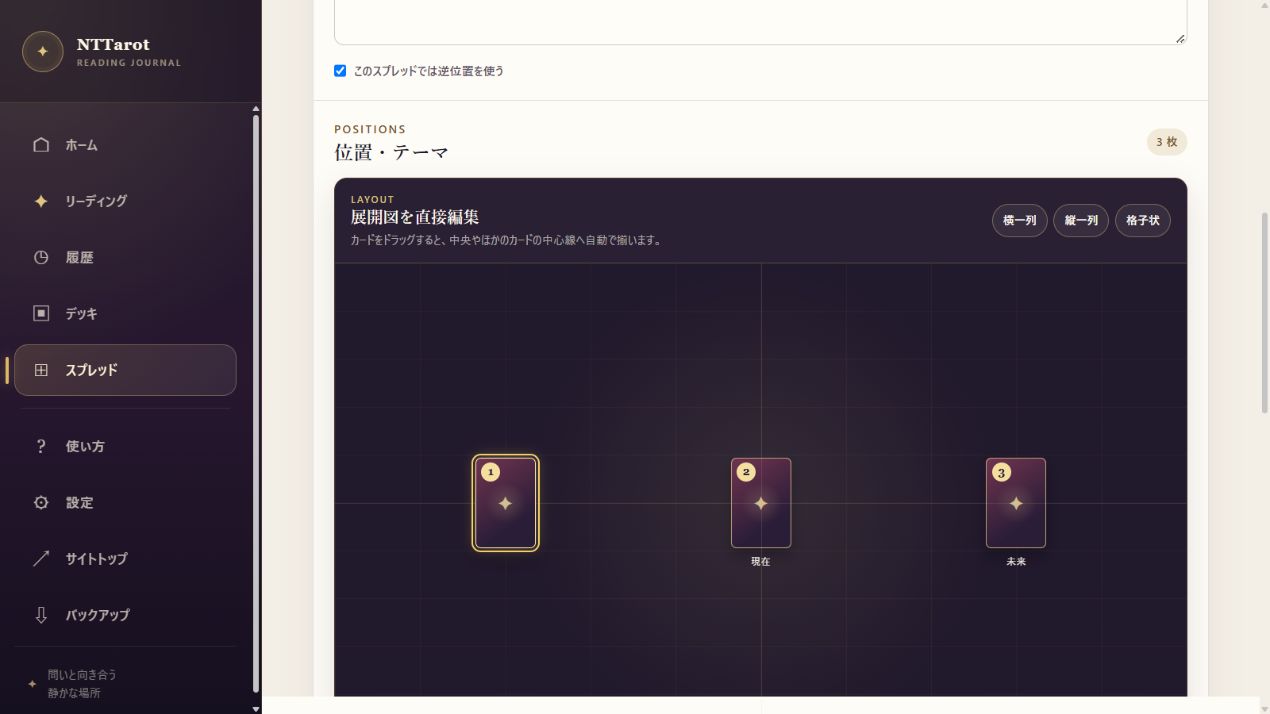
- Edit the name, description and position labels. Drag cards in the layout editor to adjust their placement and rotation.
- You can also align cards in rows, columns or a grid. Save the spread to select it in a reading.
STEP 02
Build an on-the-spot spread with Free Tarot
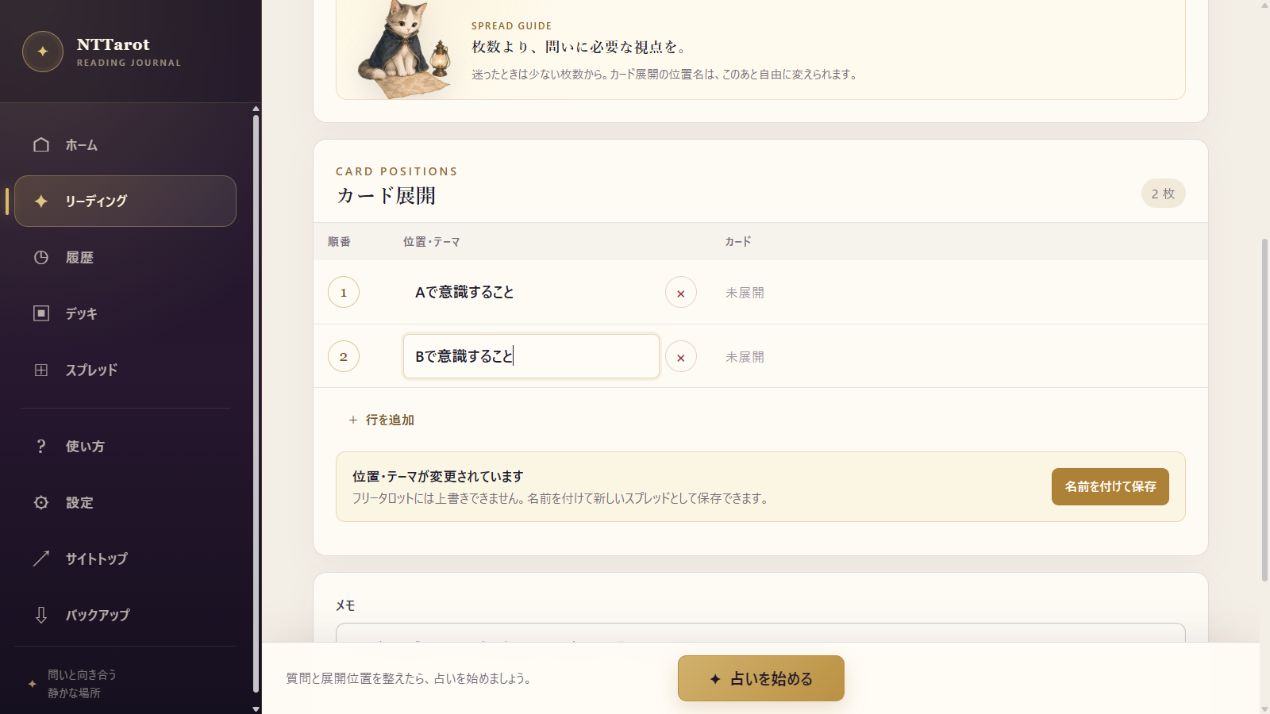
Free Tarot is useful for a question that does not need a reusable template yet. Decide the card count and position labels just for this reading, to compare options or explore points one at a time.
- Select Free Tarot in reading setup.
- Add rows for the cards you need, then enter position meanings such as ‘Choosing A’ and ‘Choosing B’.
- Start the reading when you are ready. If the layout is useful, save it as a named spread for next time.
STEP 03
Explore with extra cards and related readings
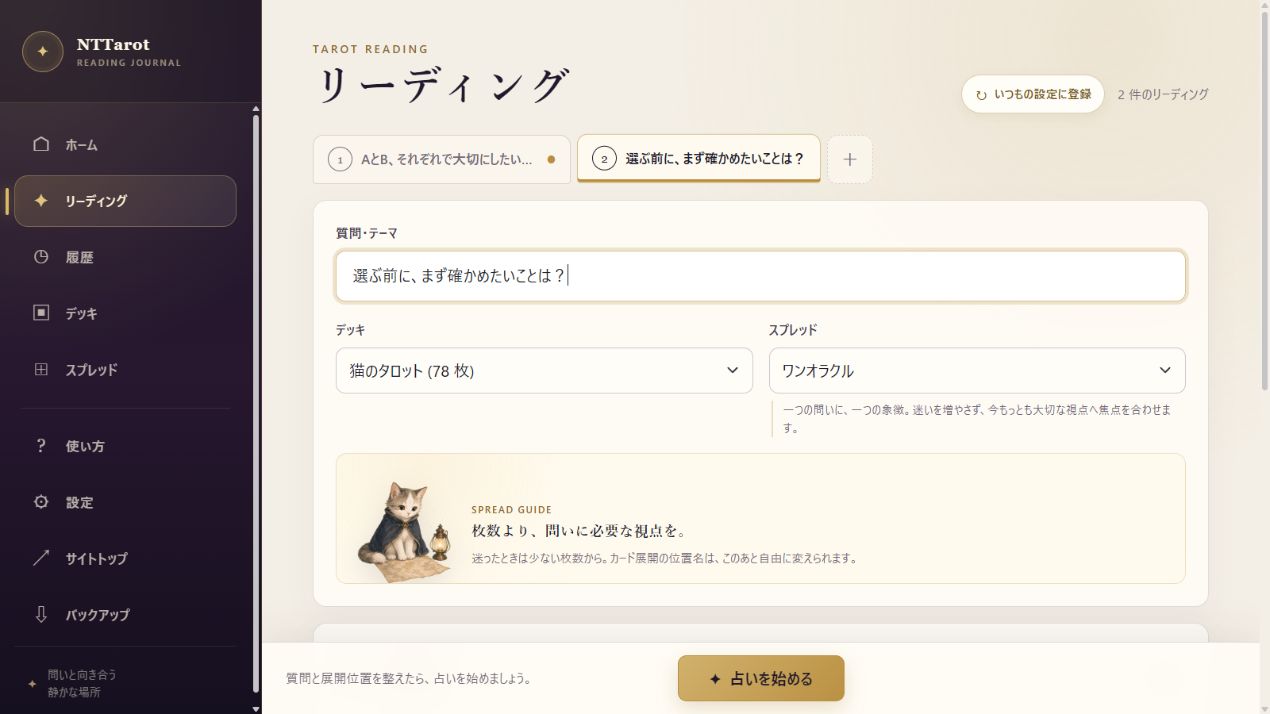
Use an extra card to clarify a position, or a related reading to explore a new question. Keep the path from ‘What is happening?’ to ‘What can I do next?’ in one group of records.
- Read the result and identify the position or question you want to explore.
- Draw an extra card or add a related reading with its own question, deck and spread.
- Switch tabs to compare the readings. Save the group so you can revisit them together.
QUICK ANSWERS
Common questions
Can I name positions in Free Tarot?
Yes. Set the card count and position names on the spot, then save a useful layout for reuse.
Can I change the visual layout?
Yes. Adjust card placement and rotation in the visual editor, then save them with the position meanings.
EXPLORE MORE