Ask in your own words
Explore love, work or a question you cannot quite name yet. Free questions and position labels let you choose the focus.
INSIDE NTTAROT
NTTarot is a free web app for Tarot and Lenormand readings, deck and spread editing, and keeping a reading journal. Start with the built-in cards, then shape the app around the way you read.
Free · Works in your browser · Local storage available · Japanese and English
YOUR CARDS, YOUR WAY
Explore love, work or a question you cannot quite name yet. Free questions and position labels let you choose the focus.
Begin with the cats or add your own artwork and words. Edit card images, meanings and the placement of cards in a spread.
Explore with extra cards and related readings, then save your notes. Keep the thinking behind a result as well as the cards.
Keep records locally or sync with a supported cloud provider. When you want AI input, take the prepared prompt to your preferred service.
SIX WAYS TO EXPLORE
Choose a feature for actual screens, step-by-step instructions, useful details and common questions.
01 / READING
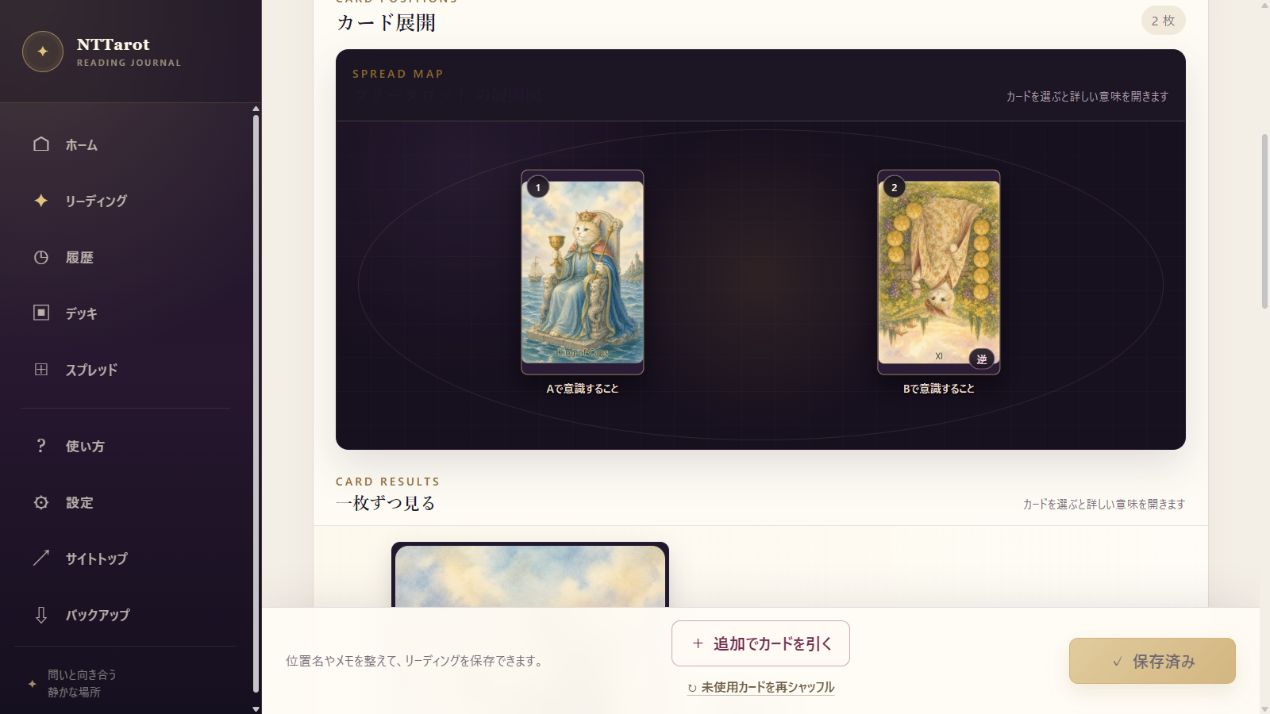
Choose Tarot or Lenormand, shuffle, explore the illustrated spread, open card meanings and share results. Learn to read your first cards in your own words.
View screens and steps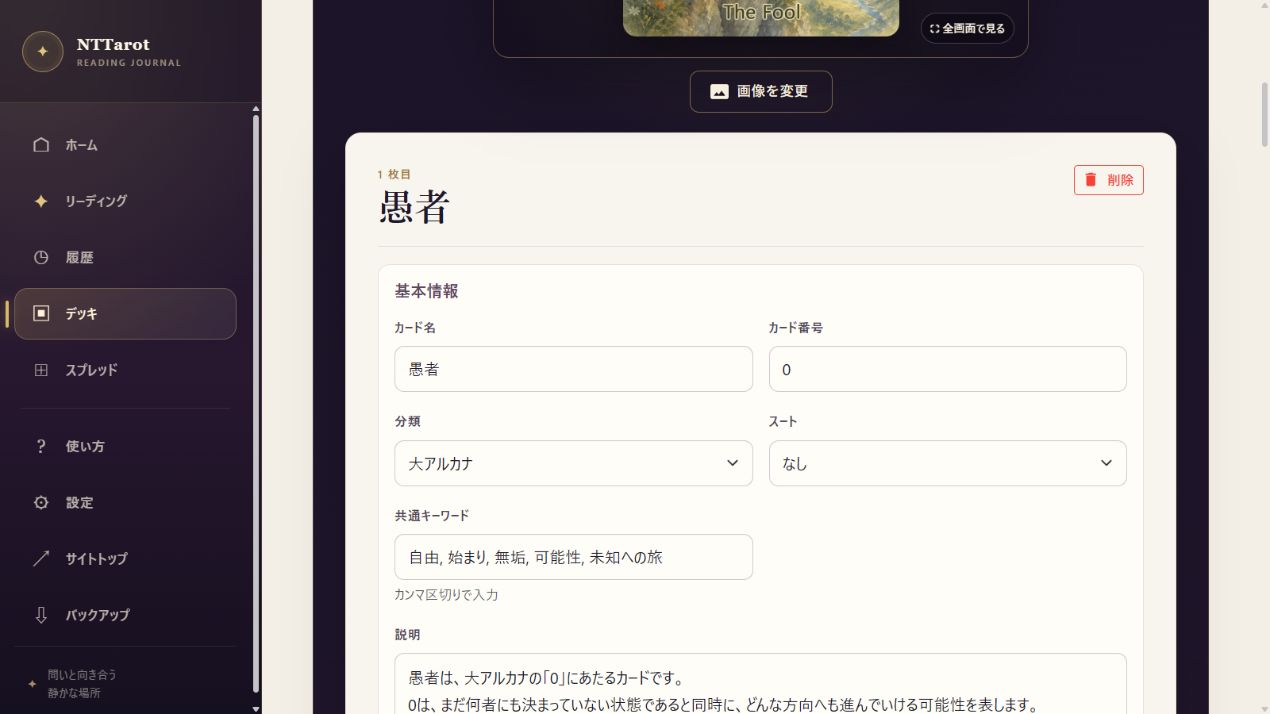
02 / DECKS
Edit a built-in deck, make a copy, create your own cards, change images and meanings, keep personal notes or import a published deck.
View screens and steps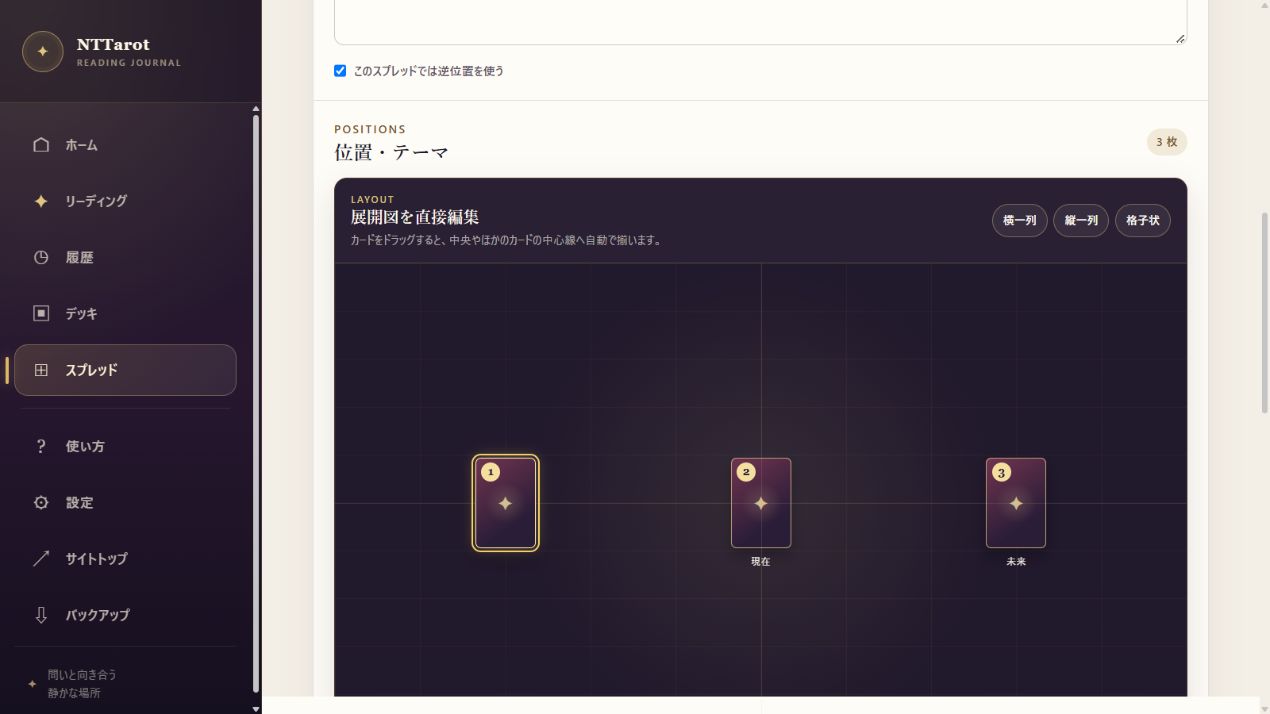
03 / SPREADS
Edit spreads, use Free Tarot, add cards and create related readings. Adapt the card count, position meanings and visual layout to your question.
View screens and steps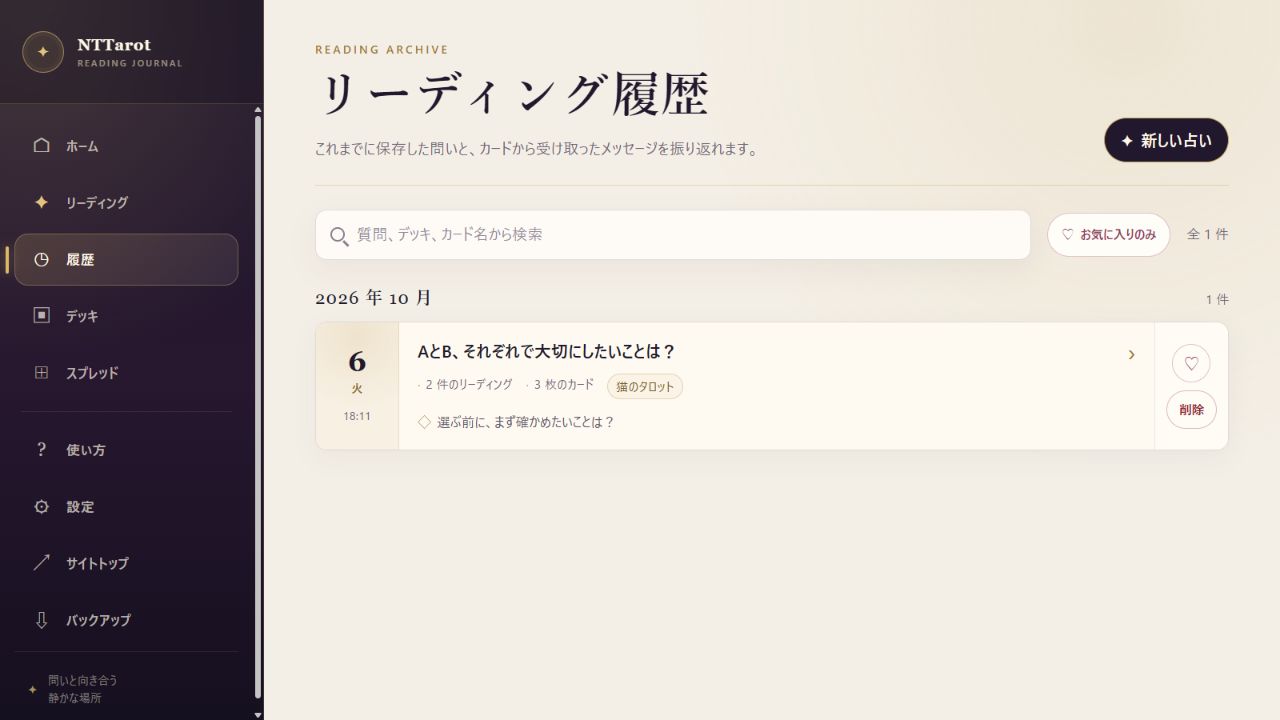
04 / HISTORY
Save questions, cards, notes and related readings. Revisit them through monthly records, search and favorites.
View screens and steps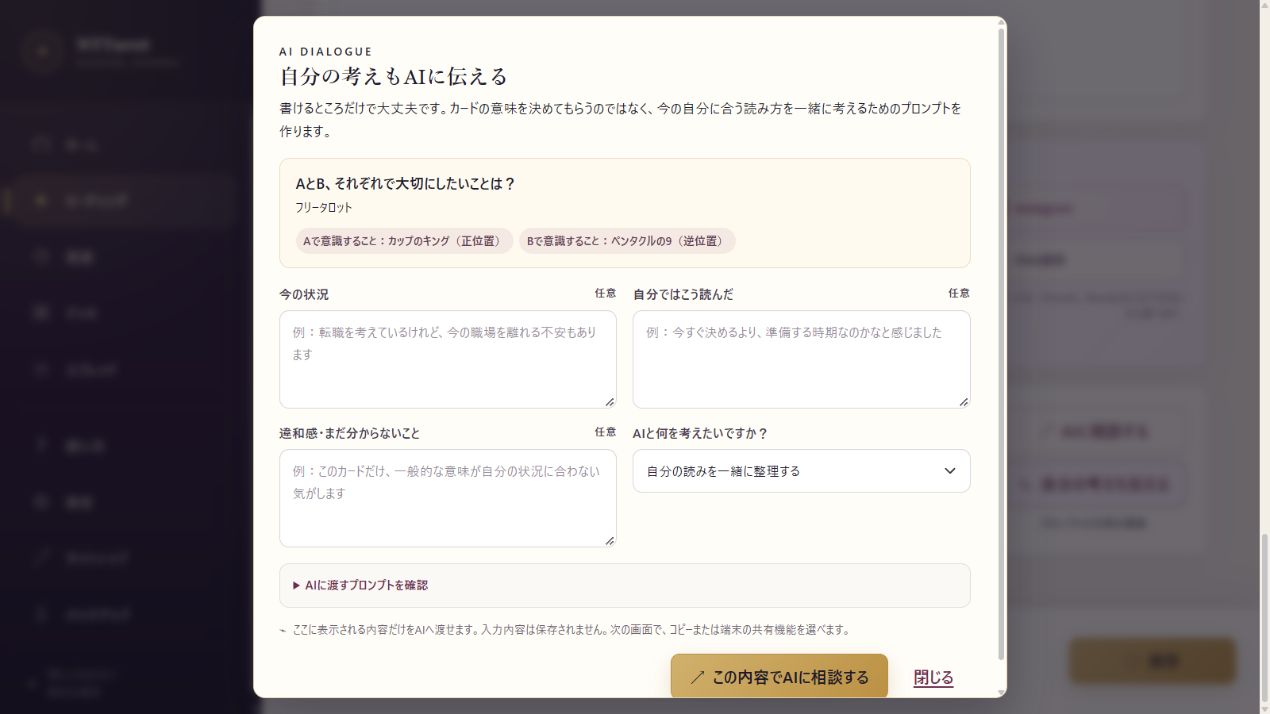
05 / AI
Create an AI prompt from your cards, add context, your interpretation and questions, and customize the instructions.
View screens and steps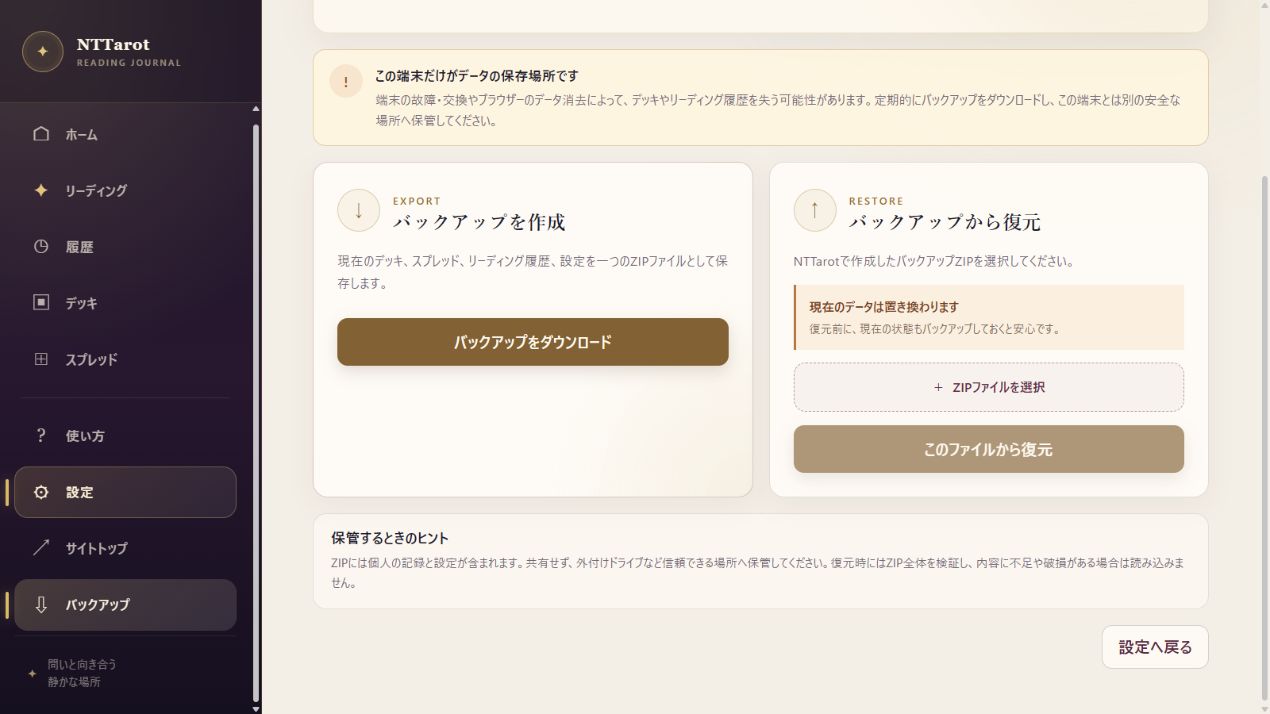
06 / STORAGE
Start with local storage, sync through OneDrive, Dropbox or Google Drive, create and restore backup ZIPs, and use NTTarot as an installed app.
View screens and stepsScreens show the Japanese interface; English is also available. Questions and notes in the examples are for demonstration.
YOUR FIRST READING
The steps follow the same order and wording you will see on screen. Select any image to view the actual screen at a larger size.
The app's How to Use menu also offers short guided tutorials. Learn by trying the actual controls, one small step at a time.
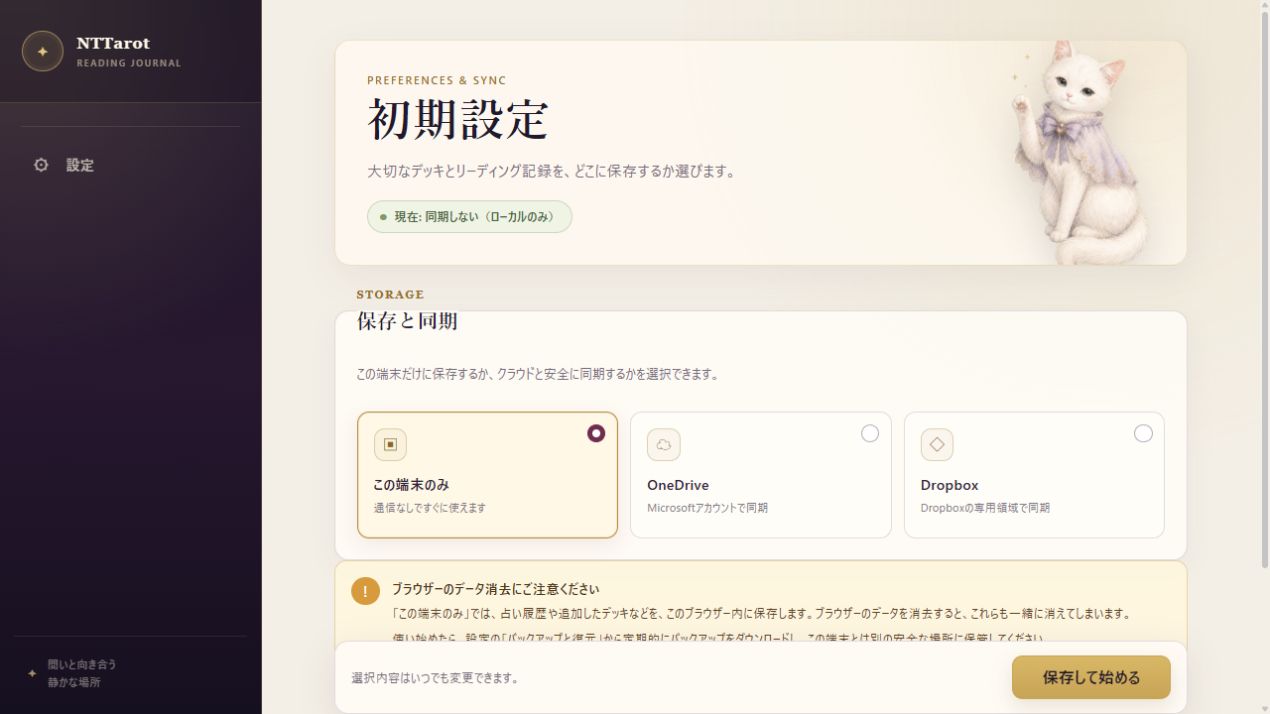
01 CHOOSE STORAGE
First, choose where to save decks and reading history. If you simply want to try the app, select “This device only” to begin right away.
02 START FROM HOME
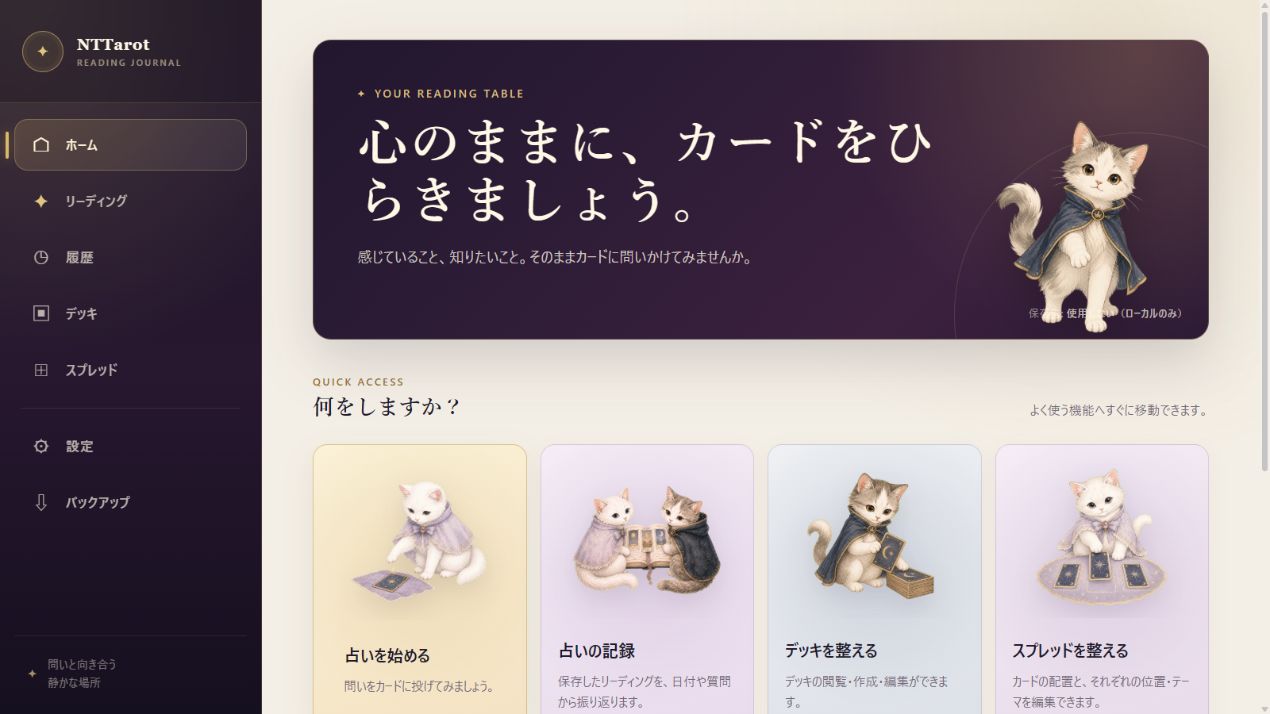
After you save your settings, the Home screen opens. Select “Start a reading” to move to the setup screen for a new reading.
Home also links to saved records, the deck editor and the spread editor. You can open them directly from the menu on the left as well.
03 FORM YOUR QUESTION
Enter what you want to know or how you feel in “Question or theme,” then choose a deck and spread. You can also begin with the question left blank.
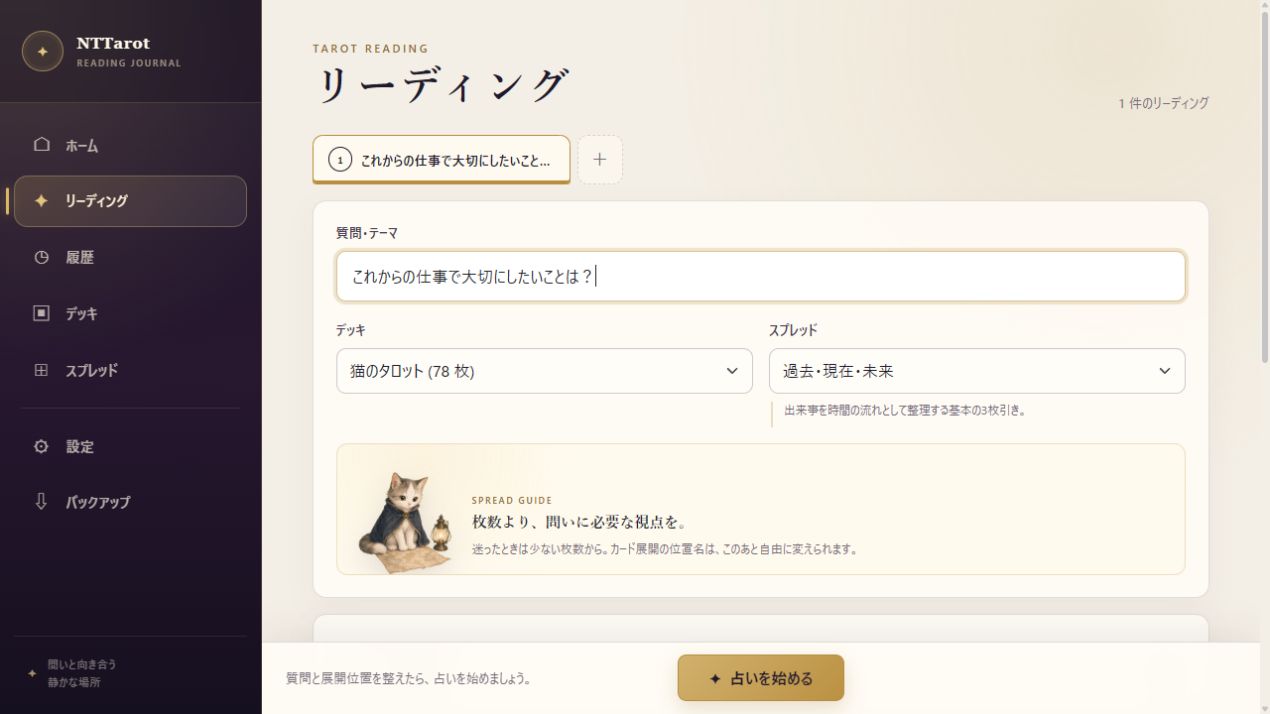
04 FOCUS & SHUFFLE
When you are ready, select “Start the reading.” Keep touching the deck, then release it when the moment feels right. Once the deck has settled, tap it again to begin laying out the cards.
Holding longer does not make the result better. Use your own timing. You can choose “Skip animation” instead of waiting for every card to turn over.
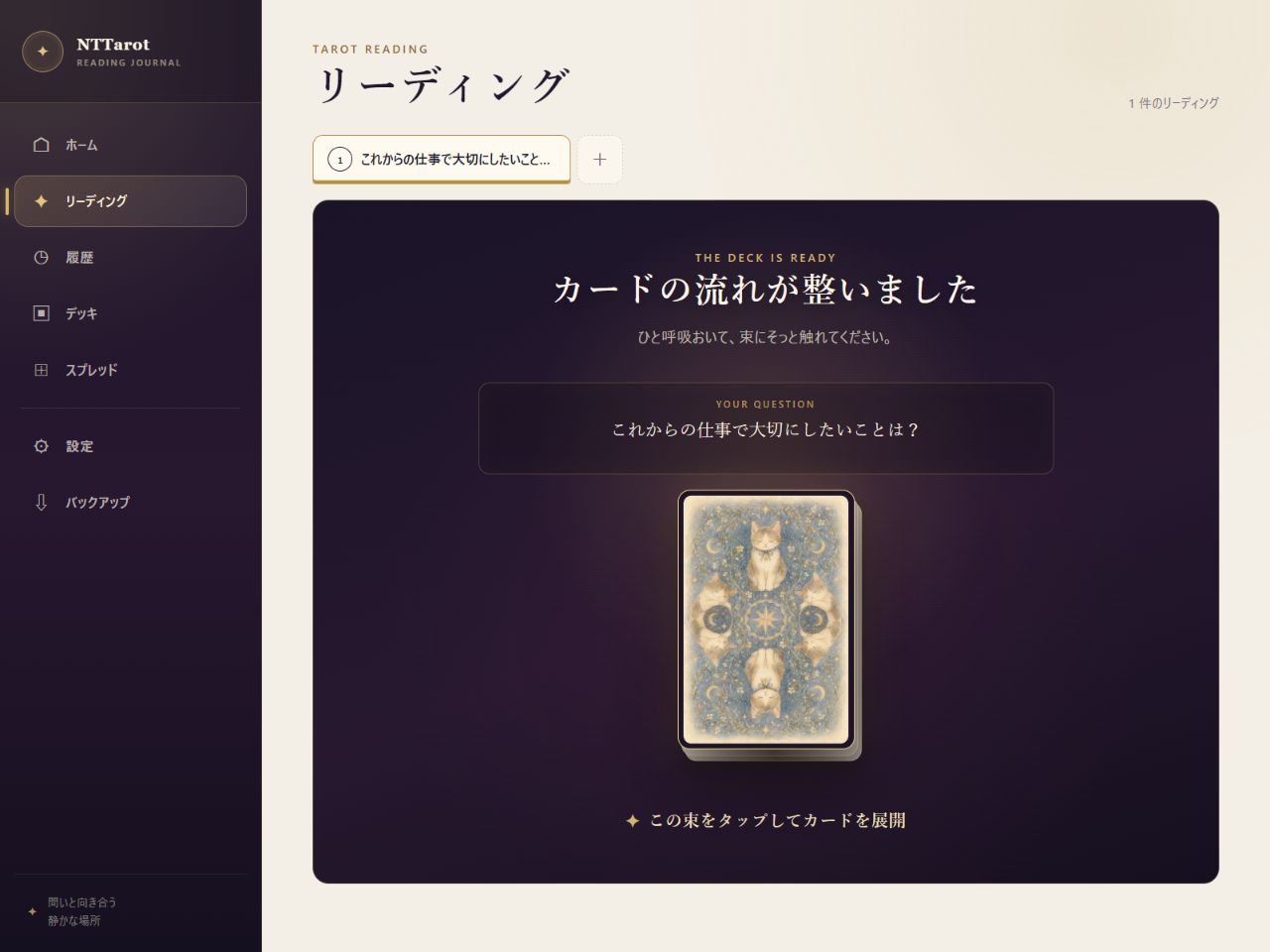
05 READ THE CARDS
The result appears both as a visual spread for seeing the relationships between cards and as an illustrated list for checking them one by one. Select a card image or name to see meanings, keywords and advice for that position in detail.
On a phone, open it with “View layout.” Pinch or use the mouse wheel to zoom, and swipe or drag to move around.
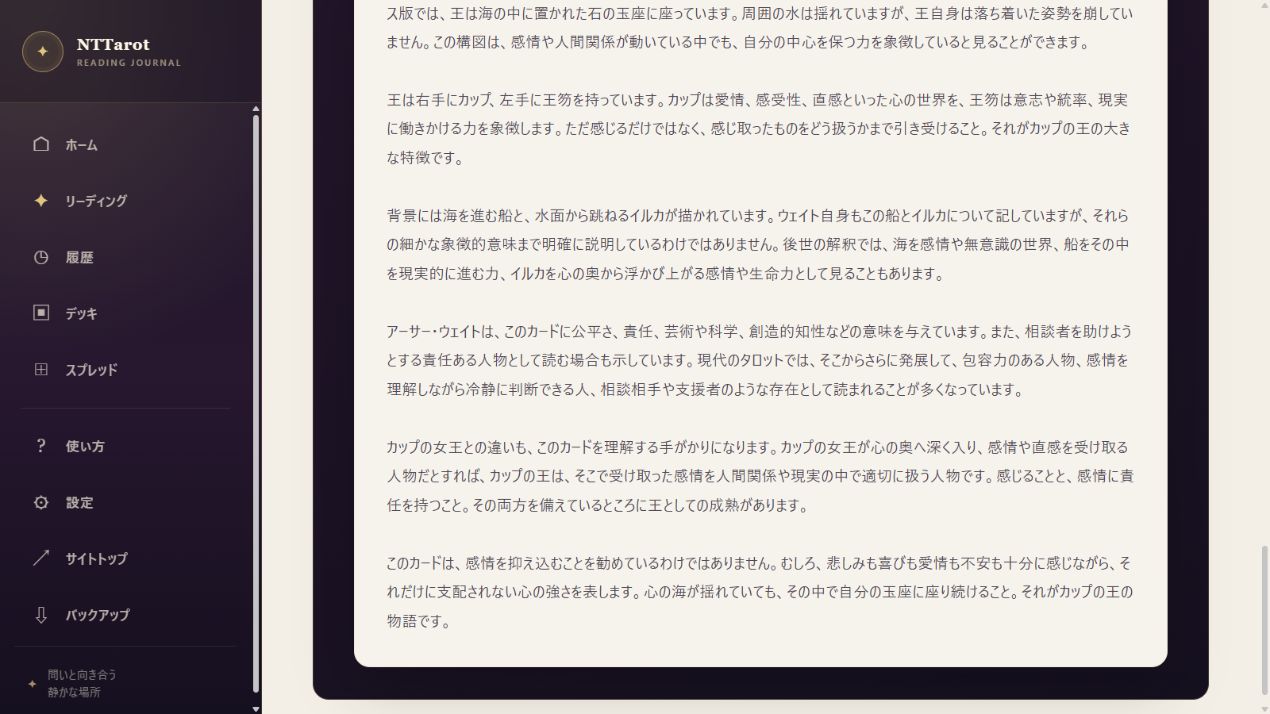
06 REFLECT & SAVE
Write what you felt from the cards and anything you want to remember in the notes. Finally, select “Save” at the bottom of the screen.
If you want another perspective, use “Discuss with AI.” NTTarot turns the question, spread and card result into a prompt, then lets you copy it or open your device's sharing interface.
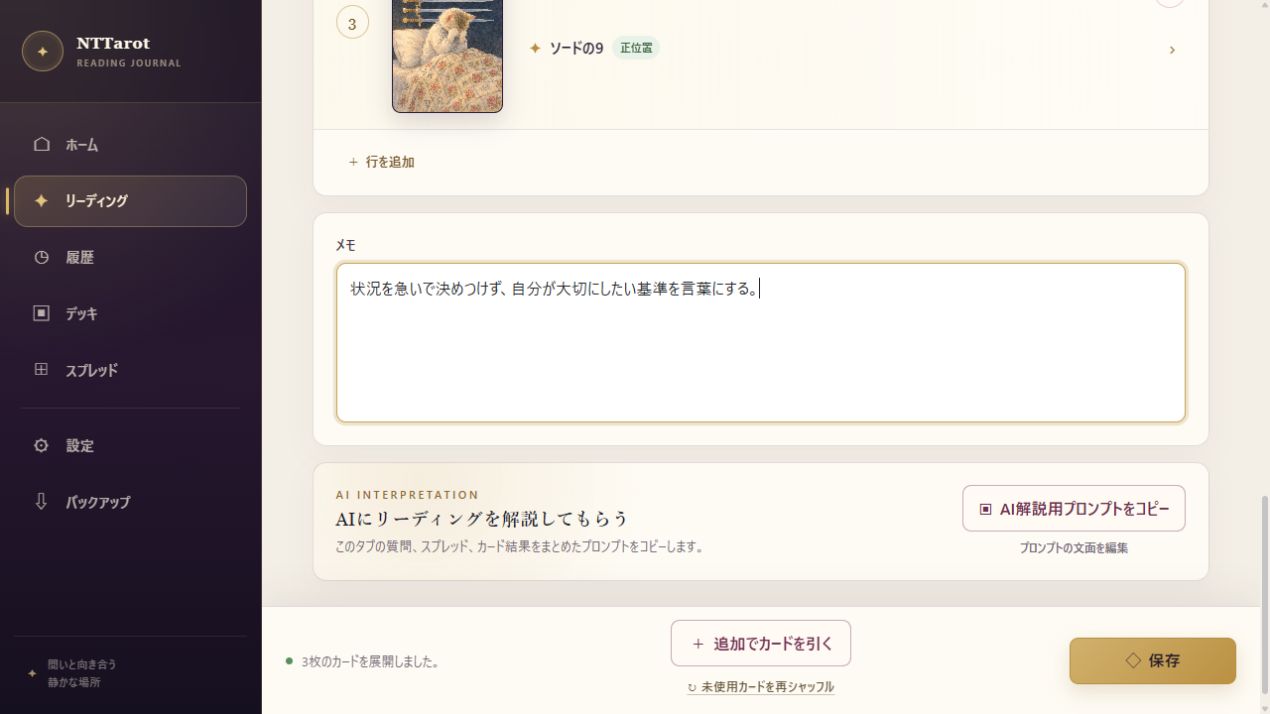
07 RETURN ANYTIME
Saved readings appear in “History.” Search by question, deck name or card name. You can reopen a reading to refine its notes or position names.
Deleted history cannot be restored. If you have records you want to keep for a long time, regular backups are also recommended.
INSTALL NTTAROT
You can install NTTarot without using an app store. It opens in its own window, without ordinary browser tabs or the address bar.
EASIEST WAY
In a supported browser, wait briefly after opening NTTarot. A message saying “You can use NTTarot as an app” appears at the bottom of the screen. Select “Install,” then approve the browser's confirmation.
iPhone / iPad
Open NTTarot in SafariUse Safari on an iPhone or iPad.
Select the Share buttonIt is the icon showing an upward arrow from a square.
Select “Add to Home Screen,” then “Add”An NTTarot icon is created on your Home Screen.
Android
Open NTTarot in ChromeIf a prompt appears, simply select “Install.”
If there is no prompt, open the menuSelect “︙” at the upper right of the screen.
Select “Install app”Depending on the environment, it may say “Add to Home screen.”
Windows / Mac
Open NTTarot in the browserIf the prompt appears at the bottom, select “Install.”
If there is no prompt, open the browser menuYou may also be able to use the install icon in the address bar.
Confirm the app installationYou can then launch it from the desktop or app list.
YOUR DATA, YOUR CHOICE
Use NTTarot only on your device or synchronize with supported cloud storage. With every method, data is first saved on this device.
QUICK ANSWERS
Yes. If the words have not come together yet, you can begin with it blank. You can also enter a question later and save it.
Yes. Built-in decks can be edited and saved directly, and restored with “Restore defaults.” Select “Copy and edit” when you want a separate deck.
Free Tarot is an open layout for deciding the number of cards and position names on the spot. Give a layout you want to use repeatedly a name and save it; it will then appear in the list next time.
Yes. Turn off “Use reversed cards” in the deck or spread settings.
No. After selecting “Discuss with AI,” you choose either to copy the prompt to the clipboard or open your device's sharing interface. If you cancel the sharing interface, you return to the choice and can switch to copying.
Yes. Restart it at any time from “First-time guide” in the app's Settings.
Download a ZIP from “Settings → Backup” and keep it in a safe place separate from the device. Restore it from the same screen in the new environment.
The prompt may not appear if NTTarot is already installed or if you previously chose “Later.” Follow the device-specific steps above and add it from Safari's Share menu or the Chrome or Edge browser menu.
A NOTE FOR YOUR READING
Neither Tarot nor an AI response should make an important decision for you.
Do not include unnecessary personal informationBefore sharing with an AI app, check that the prompt does not contain a name, contact details or other information it does not need.
Do not treat it as certaintyUse the words of the cards and AI as aids that broaden your own thinking.
Prioritize professional judgmentFor important medical, legal or investment decisions, consult an appropriate professional.

READY WHEN YOU ARE
Start with a deck already provided or with a card that is entirely your own. Enjoy reading freely.
Open NTTarot