NTTAROT / DECKS
Shape the cards around your reading style
Edit a built-in deck, make a copy, create your own cards, change images and meanings, keep personal notes or import a published deck.
Images and meanings can evolve. Add your own words and keep what you learn alongside the cards.
Select an image to view the actual screen at full size. Screens show the Japanese interface; English is also available in app settings.
STEP 01
Start with a built-in deck, a copy or a new deck
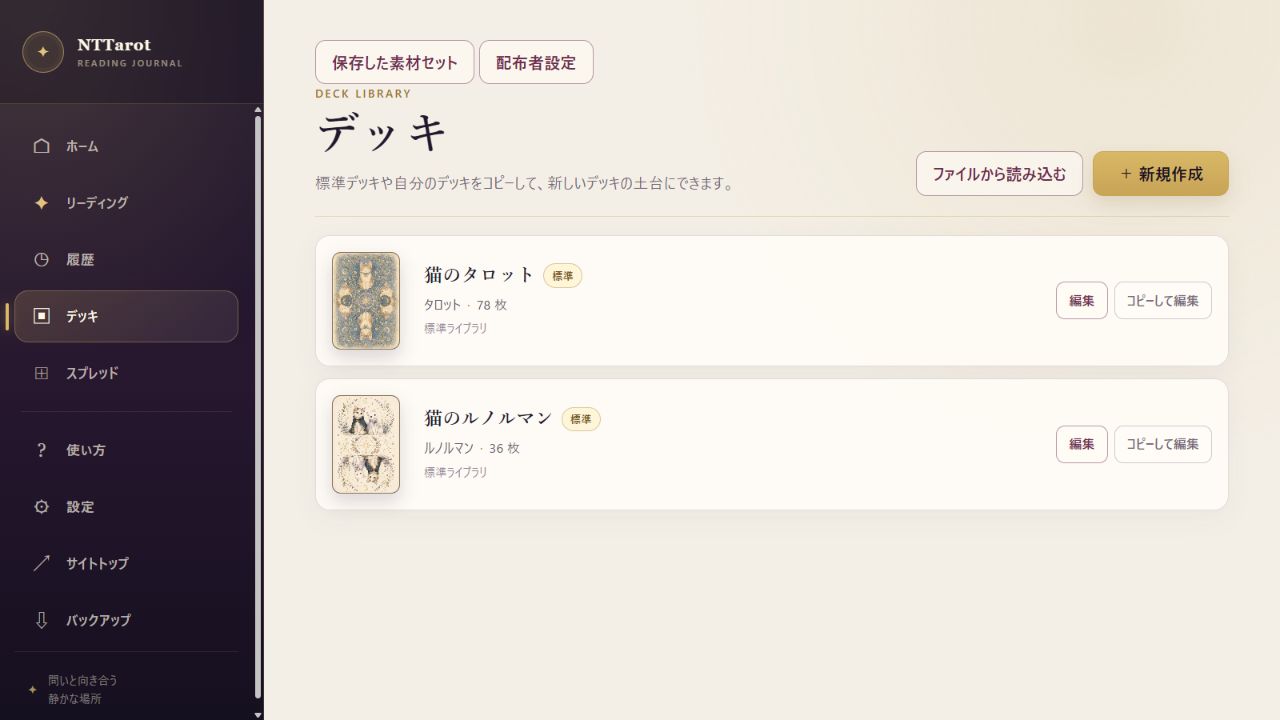
The Decks menu lists Cat Tarot, Cat Lenormand and your added decks. You can begin with a built-in deck and customize it as you learn.
- Choose ‘Edit’ to open a deck. Built-in decks can be edited directly too.
- Use ‘Copy and edit’ for a separate version, or ‘Create new’ to start from scratch.
- Find published decks on the site's Decks page, or import a supported file with ‘Import from file’.
STEP 02
Edit the deck, suits and individual cards
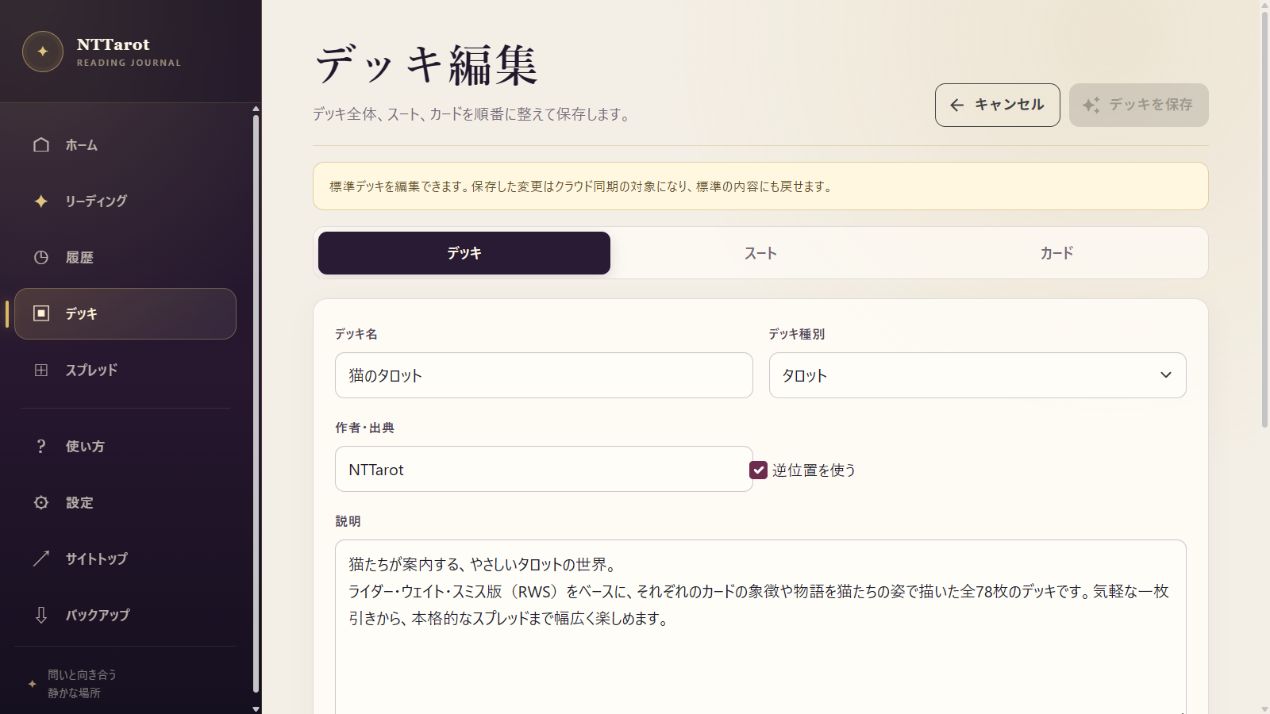
The editor has Deck, Suits and Cards sections. Set the deck name and back image, then adjust individual card names, artwork, keywords and explanations.
- Check the name, description and back image in Deck.
- Move to Suits and Cards, then select a card. Replace its image with your own artwork or adapt the card collection.
- Choose ‘Save deck’ after making changes. Saved edits are included in cloud sync when it is configured.
STEP 03
Keep explanations and personal notes
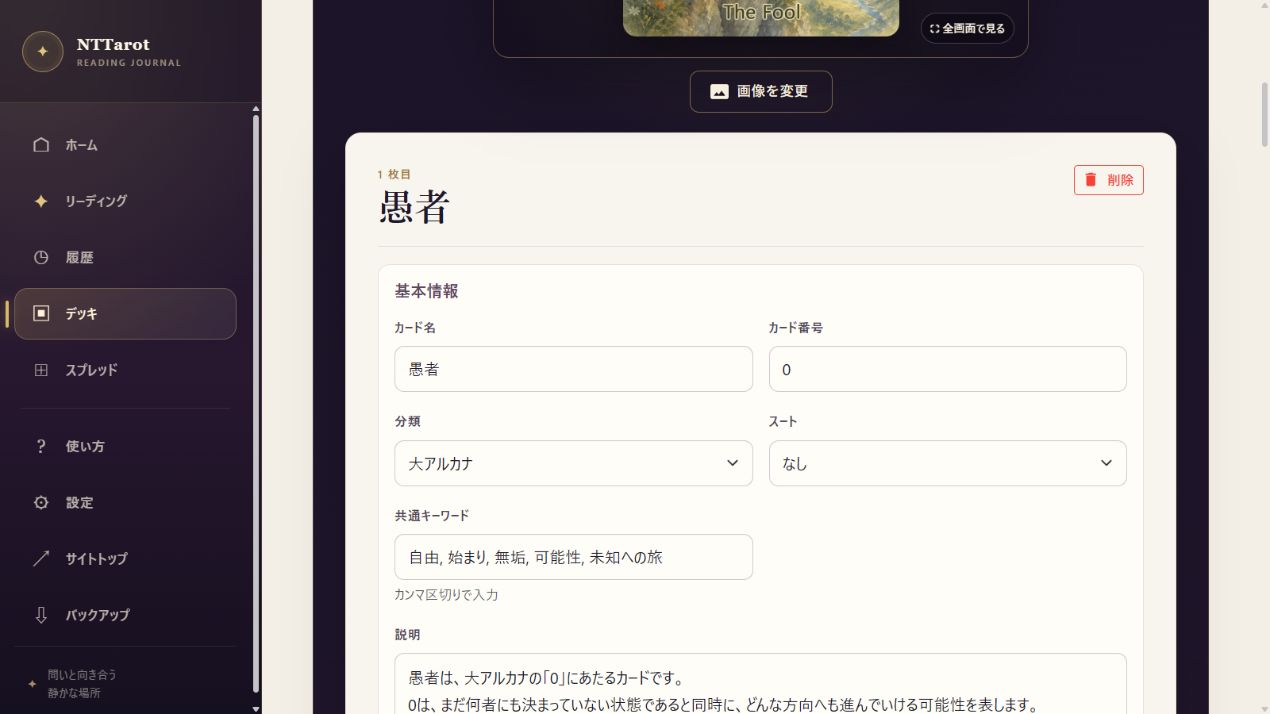
Use the explanation fields for meanings you want to consult during readings. Keep observations and memory cues in personal notes, building your own reference as you go.
- Select a card and compare its artwork with its explanations.
- Adapt keywords and meanings to language that makes sense to you. Add your learning observations to the personal note.
- Save the deck, then select it in your next reading to use the updated explanations.
QUICK ANSWERS
Common questions
Are built-in decks read-only?
Built-in decks are editable. You can save changes or restore the defaults. Use ‘Copy and edit’ for a separate deck.
Can I use artwork other than cats?
Yes. Create a deck with your own images or import a published deck such as RWS Tarot from the Decks page.
Can I export a deck as a file?
Use ‘Export to file’ in the deck editor to create a supported deck package. Set author information and material conditions in the publication settings, and check those conditions before sharing. Use a backup ZIP to keep all your records together.
EXPLORE MORE